.png&w=1280&q=75)
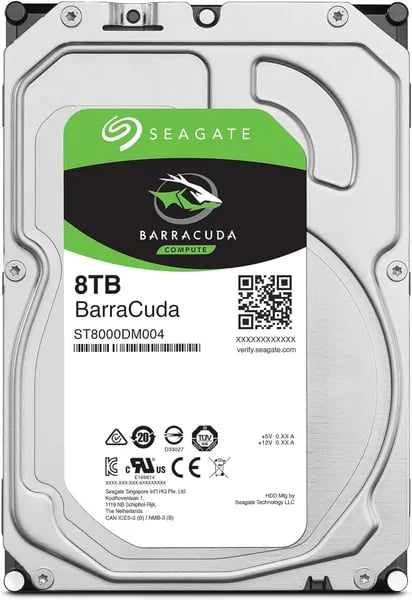
You’re upgrading your PC storage and feel the pull between price-per-terabyte and speed. I remember swapping out an old 500GB drive for an 8TB BarraCuda and suddenly having a place for every game, project, and photo library. This outline walks you through what matters — capacity, cost, noise, and reliability — so you can pick the right BarraCuda without overthinking it.
1) Why BarraCuda Might Be Your Storage Workhorse
High-capacity storage that keeps up with your library
If your PC is constantly running out of space, the BarraCuda family is built for bulk. These internal hard drives cover mainstream desktop capacities from 1TB to 8TB, so you can scale from “extra room” to “archive everything.” The standout is the Seagate BarraCuda 8TB (ST8000DMZ04/004), which gives you a huge pool of storage for modern game installs, media collections, and long-term backups—without forcing you into SSD-level pricing.
Strong price-to-performance (especially during holiday deals)
One reason BarraCuda is so popular is simple: you get a lot of terabytes for the money. Amazon listings have shown the 8TB model around $169.99 new, with used/like-new from $149.48—a practical way to add high-capacity storage on a budget. That value is backed by strong customer adoption, including 5,000+ units sold, an 82% five-star rate, and a 4.6/5 average across a massive review pool.
Easy desktop install: 3.5” + SATA 6 Gb/s
BarraCuda drives are designed for standard desktop builds. You’re getting a 3.5” form factor and SATA 6 Gb/s support, so installation is typically plug-and-play in most towers. The 8TB model pairs a 5,400 RPM design with a 256MB cache and up to 190 MB/s sustained transfers—solid for moving big folders, storing games, and keeping backups current.
Real-world reliability notes (and where it fits best)
Reviews from the U.S., UK, Germany, Italy, Canada, and Singapore often highlight years of steady use for gaming and media storage. As one user put it:
Jesus D.: "I've relied on my BarraCuda for over three years—large games and media with consistently fast download speeds."
If you want a snappier option in the lineup, the Seagate BarraCuda 2TB (ST2000DMZ08) is frequently praised for its 7200 RPM performance and 256MB cache:
Anna: "The 2TB model's 7200 RPM and 256MB cache are major selling points for gamers and creative pros."
Just keep expectations realistic: BarraCuda is ideal for high-capacity storage (games, archives, backups), not as an OS drive replacement when speed is critical.
2) Specs, Performance and the Trade-offs You Should Accept
BarraCuda features: what you’re really buying
If you want affordable bulk storage, BarraCuda features are built around capacity, simple installs, and “fast enough” HDD performance for big libraries. The standout 8TB model (ST8000DMZ04/004) runs on SATA 6 Gb/s, uses a 5,400 RPM spindle, and pairs it with a roomy 256MB cache. That combo is great for large, steady file moves—think game folders, media archives, and backups—where HDDs can stretch their legs.
8TB specs and real-world speed (SATA 6 Gb/s)
On paper, the 8TB drive hits sustained transfers up to 190 MB/s. In a Transfer speed comparison, that’s strong for a traditional hard drive, especially for sequential reads/writes. It won’t feel like an SSD when you’re launching apps or loading lots of tiny files, but it can keep downloads, installs, and big copy jobs moving smoothly.
Jesus D.: “Consistently fast download speeds and reliable operation over years of gaming.”
Why 7200 RPM models can feel snappier
If you step down to certain 2TB/4TB options, you may get 7200 RPM (as users often note on the 2TB ST2000DMZ08). Along with the same 256MB cache, 7200 RPM can improve responsiveness in lighter workloads—opening folders, loading game assets, and general desktop use. The trade-off: you may notice a bit more noise and slightly higher power draw versus 5,400 RPM.
Anna: “Reliable 256MB cache and 7200 RPM on the 2TB model make it a competitive choice for pros and gamers.”
The limits you should accept (and check before you buy)
- SSD vs HDD reality: even with good HDD numbers, SSDs still win hard on boot times and latency-sensitive tasks like heavy video editing.
- Noise variance: some users call the 8TB “surprisingly loud,” so don’t assume silence.
- SMR vs CMR matters: some capacities use SMR, which can slow down heavy-write workloads and makes certain models a poor fit for NAS or constant rewriting. Check the exact model variant before purchase.
Overall reliability sentiment is strong, with an Amazon rating of 4.6/5 from 103,000+ buyers—but you should still keep backups, since early failures can happen with any drive.
3) Real-World Reviews, Installation and Daily Use
User reviews and reliability reviews you can actually trust
When you’re buying a high-capacity HDD, user reviews matter as much as specs. The Seagate BarraCuda line scores a strong 4.6/5 on Amazon from 103,000+ buyers, with about 82% five-star ratings. What stands out in reliability reviews is the same theme across Germany, Italy, Canada, Singapore, the UK, and the U.S.: you get solid performance for the price, and most people report long-term satisfaction.
Many users say the drives handle big game libraries and media archives for years—especially popular titles like Call of Duty, FC 25, and MK—without constant slowdowns.
Jesus D.: "I've relied on my BarraCuda for over three years, storing large games and media with consistently fast download speeds."
Beginner-friendly installation (plus common accessory pairings)
Daily use starts with setup, and BarraCuda is typically as simple as mounting it in a standard 3.5” bay and connecting SATA power + data. If you’re missing a cable or want a clean build, buyers often pair it with a BENFEI SATA Cable III. If you’re already inside your PC doing upgrades, ARCTIC MX-4 thermal paste is a common add-on for CPU cooler re-seats.
- Plug-and-play for extra storage drives
- Works on Windows and Linux in most builds
- Easy to find in Amazon’s Computer Components section (often with fast shipping and expanded returns during the 2025 holiday season)
Cloning your old drive with Seagate DiscWizard
If you’re replacing an older HDD, Seagate DiscWizard is frequently mentioned as the “no-drama” way to clone your data. You typically install the new drive, run the tool, and copy your old disk over—then swap boot order if needed in BIOS/UEFI.
Anna: "Easy plug-and-play setup and simple cloning using Seagate’s DiscWizard made my upgrade painless."
Common complaints: noise and a small failure rate
Most owners call BarraCuda quiet enough, but a few report “surprisingly loud” units—more often with higher-capacity models. Also, while the failure rate seems small, early failures do show up in reviews, so keep a backup (cloud or external) no matter which capacity you choose—whether it’s the Seagate BarraCuda 4TB value pick or a larger 8TB drive.
4) How to Choose the Right BarraCuda — A Simple Decision Flow
Choosing the right Seagate BarraCuda comes down to matching the drive to your workload. When you align capacity, speed, and noise expectations up front, you avoid the most common “why is this slow?” surprises—especially around SMR vs CMR behavior and 7200 RPM trade-offs.
Step 1: How much space do you really need?
- Mostly media, photos, backups, and big archives: go 4TB or 8TB. The 8TB models (like ST8000DMZ04/004) give you huge headroom, and 5,400 RPM is usually fine for storage-first use.
- Mixed use with a growing game library: 4TB is the “sweet spot” if you want value without jumping to the largest drive.
Step 2: Do you need speed or just capacity?
- Snappier load times for games/apps: consider a 2TB 7200 RPM BarraCuda (like ST2000DMZ08). Higher RPM can feel quicker, but it may run a bit warmer or louder.
- Best of both worlds: pair an SSD for Windows + favorite games and use the BarraCuda for bulk storage. This balanced setup gives you SSD responsiveness without paying SSD prices for 4–8TB.
Step 3: Check key BarraCuda features before you click “Buy”
Don’t assume every listing is identical. Confirm the exact model number and specs (RPM, cache, and recording method).
Anna: “Always check whether a model uses SMR or CMR—it's key for long-term performance in write-heavy tasks.”
- SMR vs CMR: SMR can slow down during long, heavy writes (like frequent large backups). If you do write-heavy work, prioritize CMR when available.
- Warranty period: many BarraCuda drives are often listed with a two-year warranty—verify on the product page.
Step 4: Buying confidence (and setup extras)
- Amazon deals + returns: seasonal sales and strong return policies can reduce risk if you’re worried about early failure.
- Accessories: a BENFEI SATA Cable III helps if your case is missing cables; ARCTIC MX-4 is handy if you’re re-seating a CPU cooler during a rebuild.
- Cloning: use Seagate DiscWizard if you’re migrating data from an older drive.
Quick sanity check: Is BarraCuda the right Seagate family?
BarraCuda is for everyday desktops and big storage. If you need NAS uptime, look at IronWolf; for enterprise workloads, Exos; for hybrid/SSD-focused performance, FireCuda.
Wild Cards: Quotes, Analogies & Hypotheticals
An easy way to picture BarraCuda features (HDD vs SSD)
Think of a BarraCuda as a roomy attic: it’s where you stash the big stuff you don’t need every minute—old game installs, raw video, project backups, and that “I’ll sort it later” folder that somehow becomes your whole life. That’s the sweet spot for high-capacity storage. Your SSD, on the other hand, is the kitchen drawer: the place you reach into all day for daily tools—your OS, your main apps, and the games you actually launch every night. This analogy helps you decide without overthinking benchmarks: if you need space and value, the attic wins; if you need instant access, the kitchen drawer does.
A quick hypothetical: 2010–2025 memories, kept local
Now imagine you decide to archive every photo and video from 2010–2025. Phone upgrades, vacations, family clips, school projects, random screenshots—none of it feels huge until it’s all in one place. In that scenario, an 8TB Seagate BarraCuda is often the cheapest, simplest way to keep everything local without playing monthly subscription roulette. You can still back it up later, but the point is: you get breathing room fast, and you stop doing storage gymnastics every time you import a new folder.
Quote roundup: the human side (noise, trust, “does it last?”)
Specs are helpful, but real stories are what you use to judge the intangibles—like whether a drive feels reliable, or whether the noise will bug you at 1 a.m. One long-term user, Jesus D., frames it in a way that matches the attic idea perfectly:
Jesus D.: "I've relied on my BarraCuda for over three years—it's been my storage attic."
And if you want something that feels snappier for active folders, the Seagate BarraCuda 2TB (the 7200 RPM option) gets love for day-to-day work. Anna puts it like this:
Anna: "For me, the 2TB 7200 RPM model behaves like a small, fast pantry—just what my editing workflow needed."
So here’s your clean takeaway: use an SSD for “right now,” and use BarraCuda for “keep it all.” When you match the drive to the job, the BarraCuda features—capacity, value, and steady performance—feel less like compromises and more like a smart plan you’ll thank yourself for later.