.png&w=1280&q=75)
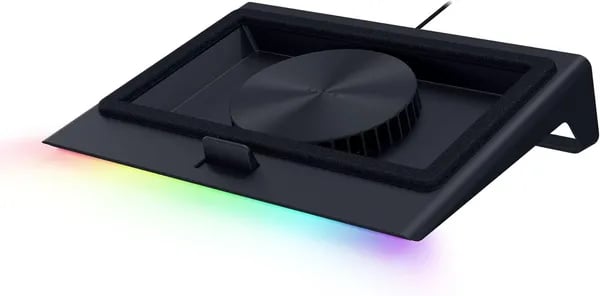
Imagine you're in the middle of a marathon render or a tense boss fight and your laptop suddenly dials back performance to avoid a meltdown. That used to happen to me all the time—until I started treating cooling as a first-class accessory. In this post you'll get a hands-on-feel outline of the Razer Laptop Cooling Pad: Adaptive Smart, how it behaves under heavy load, and whether it's the upgrade your rig actually needs. I’ll mix in a couple of oddball comparisons, a buyer's checklist, and a short hypothetical—because buying tech should feel a bit like storytelling, not a datasheet.
Smart Cooling Tech: What’s Under the Hood
Intelligent Fan Control + Razer Synapse Software
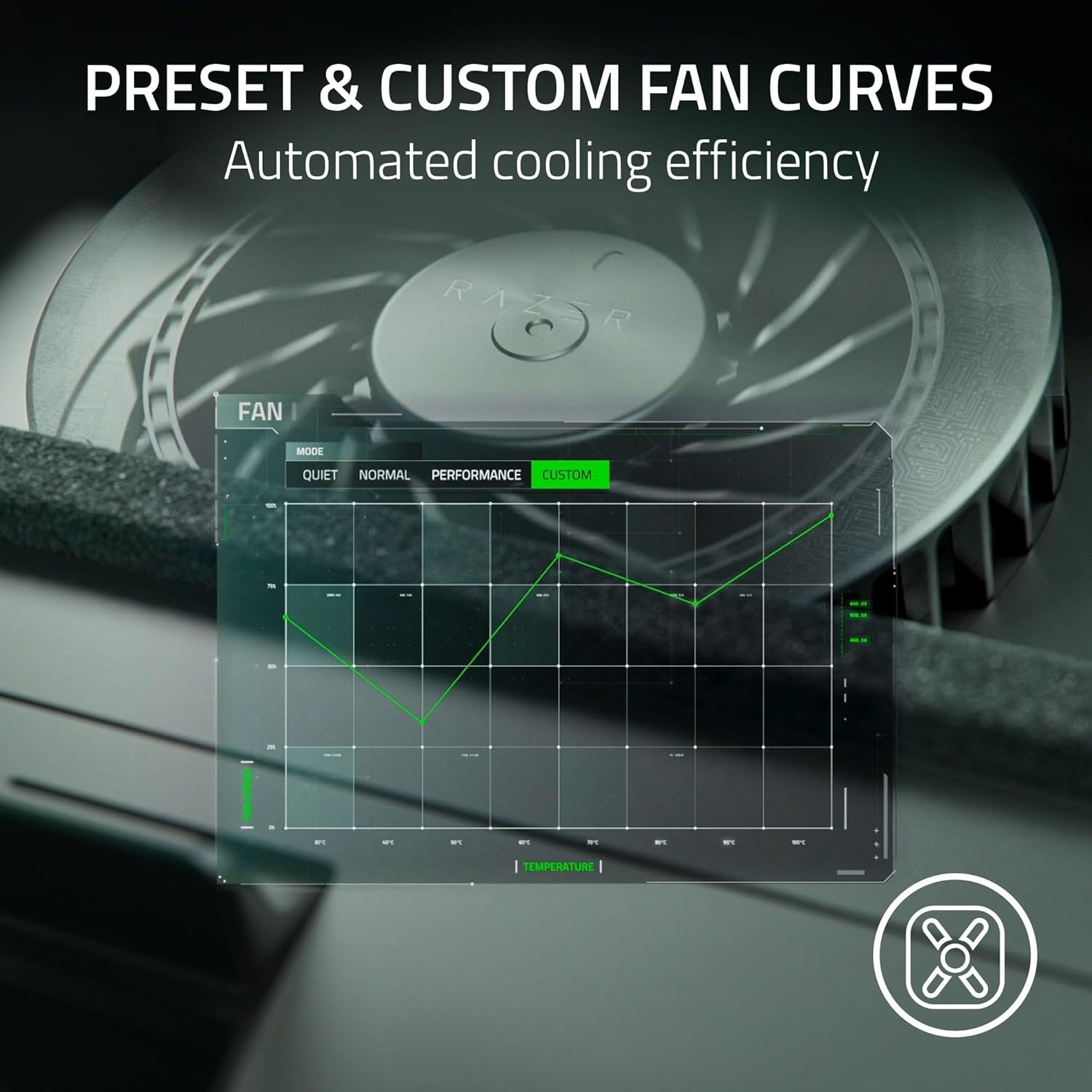
This pad isn’t just a fan on a stand—it’s Smart Cooling you can actually tune. With Intelligent Fan Control, the fan speed can adjust automatically based on your laptop’s temperature through Razer Synapse Software. That means when you’re browsing or writing, it can stay calm and quiet, and when you launch a heavy game or render a video, it ramps up to match the heat.
You can keep it simple with presets, or go deeper with Customizable Fan Curves to balance noise and temps exactly how you like. Synapse also supports per-game profiles, so your “Cyberpunk” curve can be different from your “Photoshop” curve. The pad’s multi-function buttons can be remapped in Synapse too—so you can switch modes, change lighting, or trigger custom actions without digging through menus.
Airtight Pressure Chamber + 3 Swappable Magnetic Frames
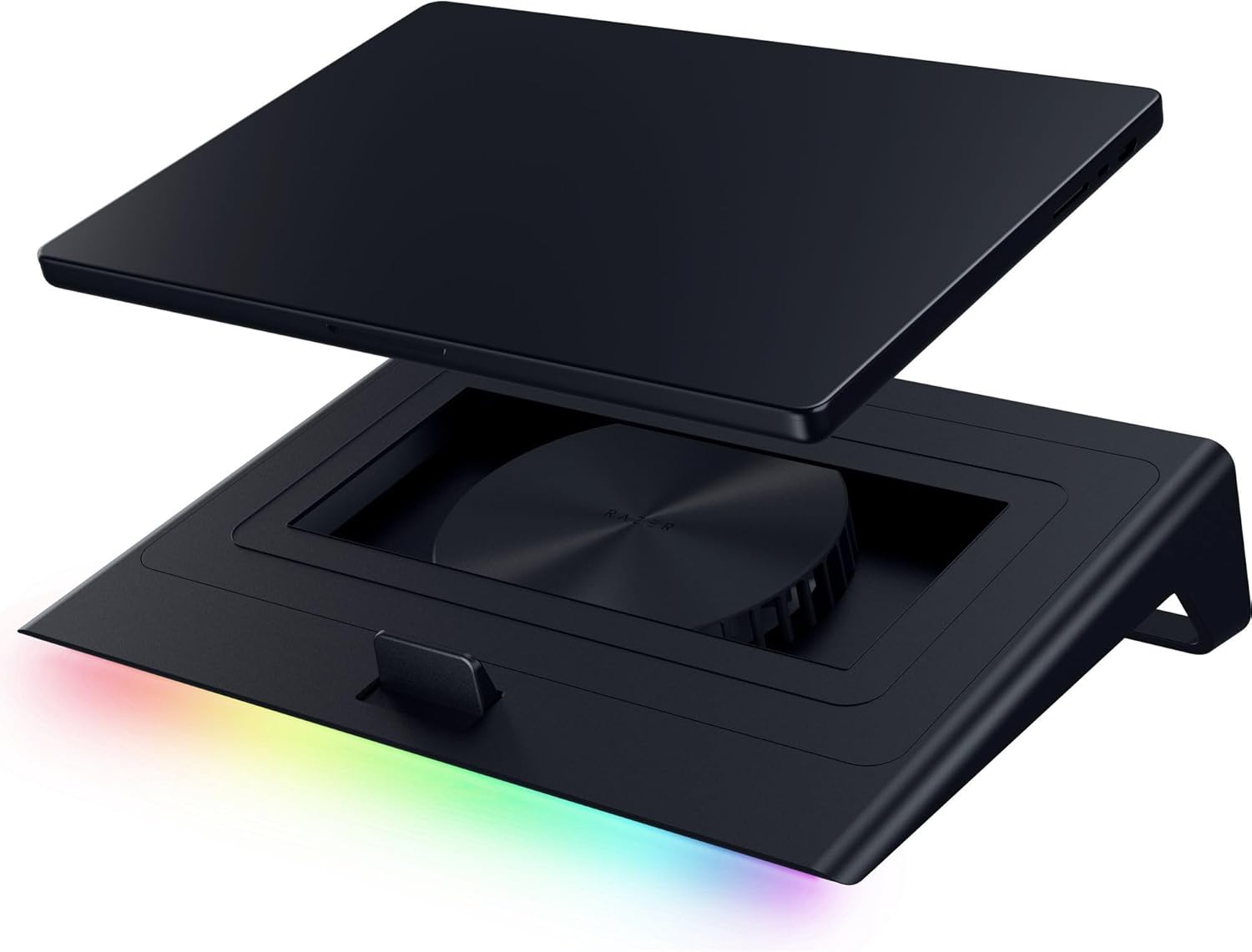
The real trick is the Airtight Pressure Chamber. Instead of letting air spill out the sides like many open cooling pads, this design helps seal around your laptop and pushes airflow where it matters—up into the intake vents.
Marcus Reed, PC Hardware Analyst: "The airtight pressure chamber is the quiet secret here — it channels airflow where it matters and makes the fan far more effective."
You get three swappable magnetic frames to match different footprints, helping the pad fit laptops and MacBooks from 14” to 18”. A better seal = stronger, more focused cooling, which is why this style can outperform basic mesh pads.
Core Hardware: 140mm Fan, 36W Power, and Razer HyperBoost
Under the hood, you’re working with a single 140mm brushless fan rated around 500–3,200 RPM. It’s powered by a bundled 36W adapter, so it has the headroom to stay aggressive under load. There’s also an ultra-fine dust filter to help keep airflow consistent over time.
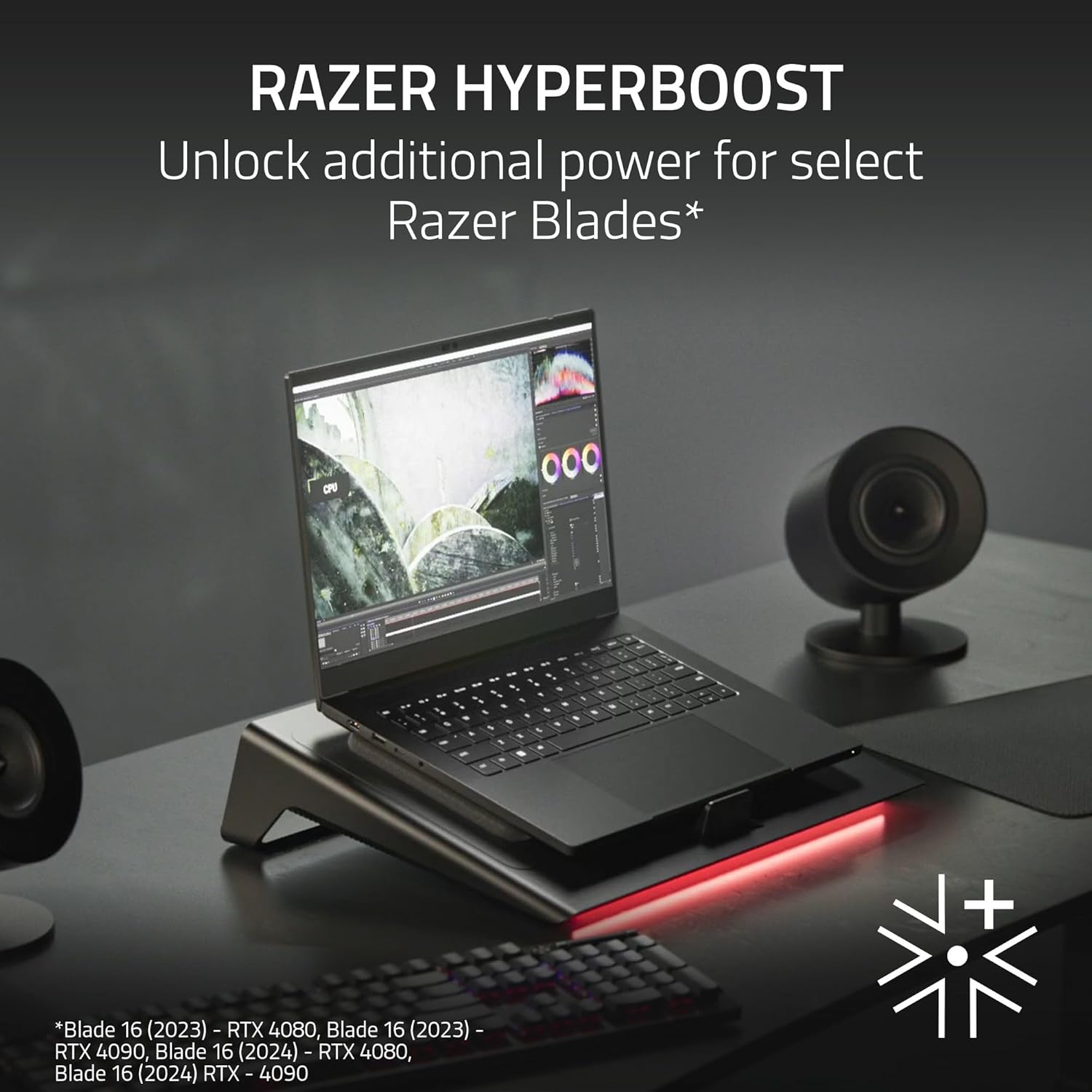
If you’re on select Blade models, Razer HyperBoost can pair cooling with extra performance headroom—useful when you’re pushing sustained gaming or creator workloads.
| Spec | What You Get |
|---|---|
| Fan | 140mm brushless |
| Speed Range | 500–3,200 RPM |
| Power | 36W adapter |
| Fit | 14”–18” + 3 magnetic frames |
Real-World Performance: Temps, Noise, and Stability
Temperature Management and Thermal Throttling Reduction
In real use, the Razer Adaptive Smart Laptop Cooling Pad delivers the kind of Temperature Management you actually notice—especially when your laptop is under heavy load. Most reviewers report internal temperature drops of 10–20°C, which can be the difference between smooth performance and heat-soaked slowdowns.
The standout example is hard to ignore: one user saw GPU temps fall from 95°C to 62°C during demanding tasks. That kind of drop directly supports Thermal Throttling Reduction, because your CPU/GPU is less likely to hit temperature limits that force lower clock speeds.
Keep in mind, your results will vary based on your laptop model, where its vents sit, and your room temperature. The pad’s magnetic frames and sealed airflow design help, but a rear-vented gaming laptop will often benefit more than a thin laptop with limited intake.
Automatic Fan Speed vs. Noise (The Real Trade-Off)
The smart controls are a big win: Automatic Fan Speed adjustment (via Synapse) means you can stay quiet during light work and ramp up only when you need it. At low RPMs, the fan is generally easy to live with.
But once you push past roughly 1,700 RPM, noise becomes very noticeable—especially in “balanced” or “performance” modes. If you’re chasing maximum cooling, plan on using headphones or placing the pad a bit farther away on your desk.
- Low RPM: quieter, good for browsing and office work
- High RPM: stronger cooling, but very loud above ~1,700 RPM
Stability and Gaming Performance Boost Under Long Sessions
Where this pad really shines is sustained use—think 24/7 streaming, long renders, or marathon gaming. Users running high-TGP laptops report stable temps and fewer performance dips, translating into a practical Gaming Performance Boost when your system would otherwise throttle.
Sofia Alvarez, Gaming Journalist: "On an RTX4080 laptop, the pad kept clocks stable during marathon sessions—exactly what you'd want when pushing frames or rendering."
Design, Build & Everyday Usability
Premium look with Chroma RGB Lighting (and handy controls)
On your desk, the Razer Adaptive Smart pad looks every bit like a Razer product: a clean black chassis, bold lines, and Chroma RGB Lighting that can match the rest of your setup through Synapse. The lighting adds style without getting in the way, though a few users mention occasional RGB sync hiccups when pairing it with other devices.
You also get remappable multi-function buttons, which makes daily use easier than digging through software. For desk setups, this is a real win—you can quickly change fan behavior, toggle lighting, or trigger custom actions without breaking focus.
Ethan Cole, Tech Reviewer: "It's solid and steady, but if you're expecting full aluminum like the Blade laptops, you'll notice the plastic construction."
Build quality, size, and stability: Works With Laptops 14"–18"
This is not a tiny travel pad. At 5.74 lbs and 16.38 x 13.35 x 6.97 inches, it feels substantial, and that weight helps it stay planted when you’re gaming or typing hard. It Works With Laptops across a wide range, including For 14-16 Laptops and For 17-18 Laptops, using magnetic frames to help seal airflow around different chassis sizes.
| Spec | Detail |
|---|---|
| Compatible sizes | 14"–18" |
| Weight | 5.74 lbs |
| Dimensions | 16.38 x 13.35 x 6.97 in |
| Ports | 3 x USB Type A |
Ergonomic Tilt Design, mounting foam, and the built-in USB A Hub
The Ergonomic Tilt Design gives you a more comfortable typing angle, especially during long sessions. Under your laptop, soft rubber mounting foam helps create a tighter seal for better cooling and a secure fit—but it can be a bit fiddly if you like perfect, repeatable alignment every time you sit down.
For everyday usability, the built-in USB A Hub (3 x USB Type A) is a standout. You can keep a mouse, keyboard, and headset receiver plugged in, which is ideal if your laptop is short on ports.
If you’re building a full ecosystem setup, there are bundle options with the Razer USB 4 Dock or even a Razer Blade 14.
Buying Experience, Price & Market Standing
Price: Premium, but easier to justify with smart features
The Razer Laptop Cooling Pad: Adaptive Smart sits in the “premium accessory” lane. The regular price is $129.99 (down from $169.99), and you’ll often see Used – Like New listings starting around $112.99. If you want serious Razer Laptop Cooling—with an airtight seal, intelligent fan control, and app-based tuning—this pricing makes more sense than basic pads that only push air with simple dual fans.
Lena Park, Consumer Tech Editor: “At $129.99 it's a premium pick—but the warranty and Amazon availability sweeten the deal for many buyers.”
Where to buy: Amazon stock, Prime speed, simple returns
Buying is usually straightforward because it’s often in stock on Amazon and eligible for Prime shipping. Depending on inventory, some used units can arrive as soon as Jan 6. If it doesn’t fit your setup or the noise level isn’t for you, you typically get a 30-day return window, which lowers the risk of trying a higher-end cooling pad.
Warranty & Razer Support: two safety nets
You’re covered by a 2-year Razer warranty, and you can usually go through either Amazon’s process or Razer Support if something goes wrong. That matters more here than with cheaper pads, because you’re paying for smarter hardware and software features—especially if you rely on Razer Synapse Software for fan curves, profiles, and lighting control.
Market standing: strong ratings and category rankings
Market signals are solid: a 4.3-star average with 1,000+ sales and 348 reviews. It also commonly ranks top 10 in “Laptop Cooling Pads” and top 300 in “Computers & Accessories”, which suggests consistent buyer satisfaction for a niche, higher-priced product.
Alternatives: cheaper options exist, but they’re usually “dumb” pads
| Alternative | Typical Price |
|---|---|
| Targus 17" Dual Fan Lap Chill Mat | $25.99 |
| ChillCore | $36.98 |
| KeiBn | $27.98 |
| AVLT | $49.99 |
| llano V12 RGB | $91.19–$119.99 |
These can be good value, but most won’t match the smart control and tuning you get from a Razer Laptop Cooling Pad. Also, if you’re buying internationally, watch for import fees—some markets can push the total close to $250 after taxes and shipping.
Who Should Buy (and a couple of wild cards)
Choose Your Loadout if you live in heavy workloads
If your laptop is basically a small desktop replacement, this pad makes sense fast. You’ll feel the biggest win when you’re gaming on high-TGP GPUs like an RTX 4080/5080, rendering video, compiling code, or running a 24/7 stream where heat builds up over hours—not minutes. The typical 10–20°C drop reviewers report can translate into real Thermal Throttling Reduction, meaning your CPU/GPU holds higher clocks longer instead of dipping mid-session. It’s also a strong fit if you swap between machines, since it’s built for 14”–18” laptops and MacBooks with magnetic frames that help seal airflow.
Jordan Lee, Systems Engineer: "If you need sustained performance, this pad is like adding a reserve tank to your thermal system—more confidence under pressure."
Fan Speed Control is the reason you pay extra
You’re not buying this just for “more air.” You’re buying control. With Fan Speed Control through Synapse, you can run quiet during emails and crank it up when the GPU is cooking—plus set profiles per game or app. Just remember the tradeoff: once you push past roughly 1,700 RPM, noise becomes a real factor. If you hate fan sound or you work in a silent room, you may end up underusing the pad’s best feature.
When to skip it (or go cheaper)
If you rarely push your laptop, a basic $25–$50 mat may be enough. And if you’re chasing a premium all-metal feel at a lower price, the mostly-plastic build may bug you. It’s also not ideal for ultra-portable setups—at 5.74 lbs, it’s more “desk gear” than “throw it in your backpack.”
Wild cards: LAN weekends and “snorkel mode” for Fanless Ventless Laptops
Picture a LAN weekend: yes, it’s bulky, but your machine will thank you after hour six when everyone else is stuttering from heat. And if you’re using Fanless Ventless Laptops (or a design that struggles to breathe), think of this pad like a snorkel—dramatic, I know, but it’s the same idea: giving your system cleaner airflow when it’s gasping. One user even said frequent throttling turned into steady performance after pairing it with a Razer Blade 14 (2025)—your mileage varies, but the goal is simple: sustained speed when it matters.