.png&w=1280&q=75)
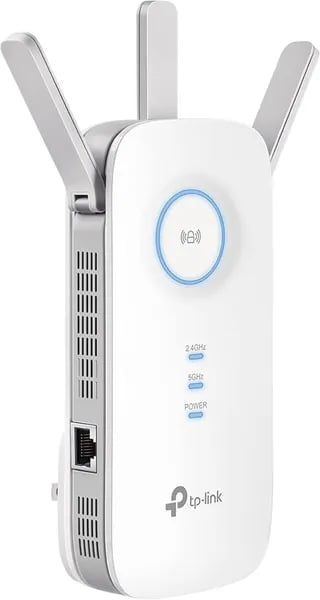
You probably know the pain: you’re midway through a video call or that crucial game match and your laptop decides the balcony is the new offline zone. I once paced the length of my living room with my phone hunting for a bar of signal—until I plugged in a humble RE550. In this short guide you’ll get practical, person-level advice on why the TP‑Link RE550 AC1900 might be the fix you didn’t know you needed, how to install it in minutes, and how to avoid the little headaches people tend to ignore.
Why the RE550 Might Be Your Best Cheap Upgrade
If you’re trying to Eliminate dead zones without replacing your whole network, the TP-Link RE550 AC1900 hits a sweet spot: strong real-world coverage, solid speed, and a price that’s hard to beat.
Extend Wi‑Fi coverage for most homes (without overthinking it)
With a coverage claim of up to 2,800 sq. ft. (some listings show different metrics, up to 1,115 m²) and support for up to 32 devices (sometimes listed as 35), the RE550 is built for normal busy households—phones, laptops, smart TVs, cameras, and game consoles all at once.
AC1900 Dual Band speed that fits mixed devices
The AC1900 Dual Band setup gives you 600Mbps on 2.4GHz plus 1300Mbps on 5GHz (about 1.9Gbps combined). That mixed-speed advantage matters: older smart home gear can stay on 2.4GHz for range, while streaming, gaming, and video calls can use 5GHz for higher throughput and less interference. In other words, you can Extend Wi‑Fi coverage without forcing every device into the same “one-speed-fits-all” lane.
One-time cost beats monthly rentals fast
At about $49.81 new on Amazon (with used units as low as $30.06), it’s often a smarter move than renting mesh boosters at around $12/month. If you’re paying a rental fee now, the RE550 can pay for itself in just a few months—then it’s yours.
Three antennas + MU‑MIMO for smoother multi-device performance
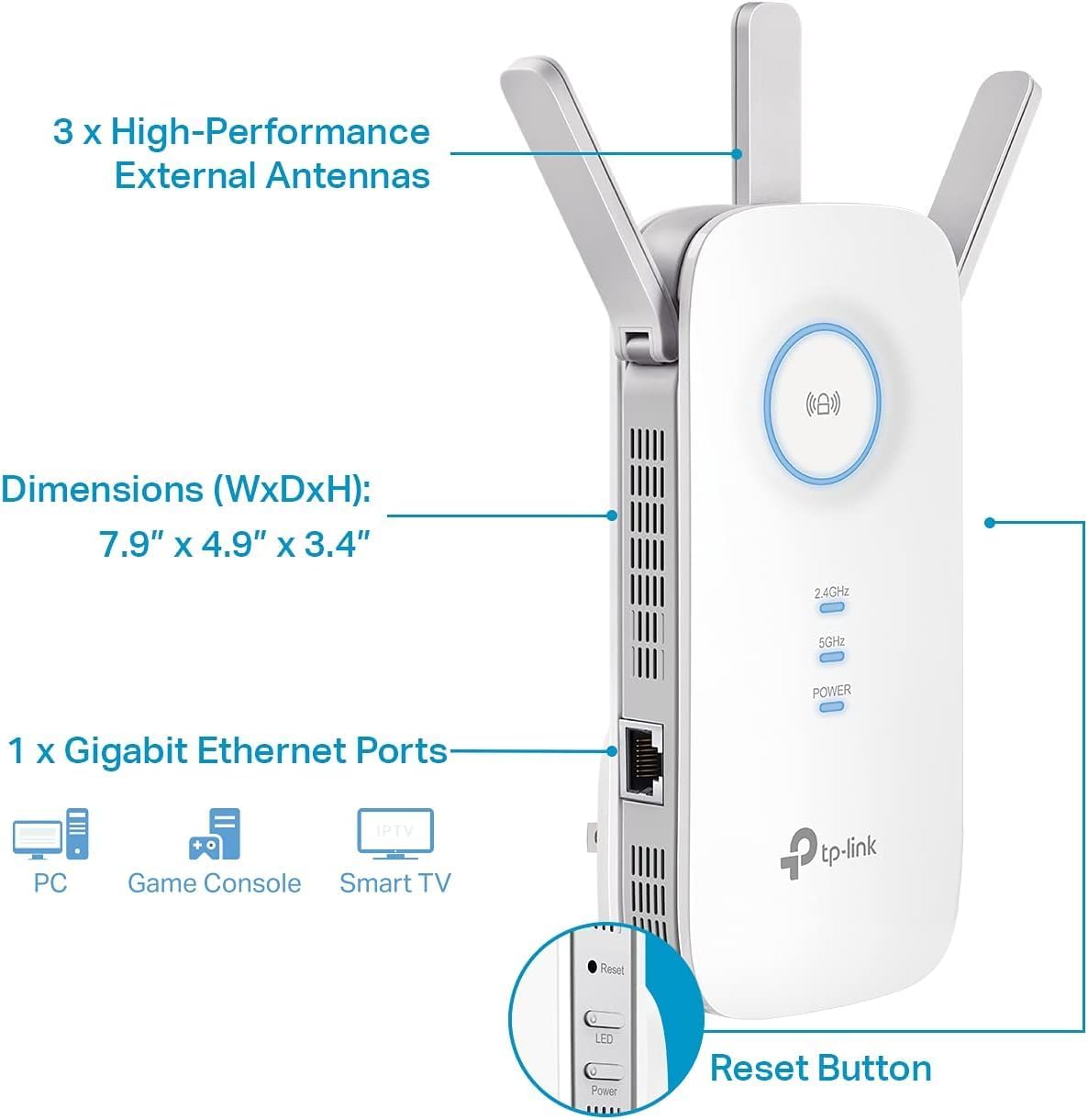
The RE550’s three adjustable external antennas help you aim signal where you actually need it. Add MU‑MIMO and 3×3 MIMO, and you get better handling when multiple people are streaming, gaming, and working at the same time—less waiting, fewer slowdowns.
Gigabit Ethernet port = instant upgrade for wired speed
The built-in Gigabit Ethernet port is a big value add: plug in a smart TV, console, or PC for a more stable connection, or use Access Point Mode to turn a wired line into a strong new Wi‑Fi spot.
"For most homes, the RE550 is a cost-effective way to bring reliable signal where your router can't reach." — Sarah Kim, Network Engineer
| Spec | What you get |
|---|---|
| Price | $49.81 new / ~$30.06 used (example) |
| Coverage claim | Up to 2,800 sq. ft. |
| Devices | Up to 32 (sometimes 35) |
| Speed class | AC1900 (600 + 1300Mbps) |
Real‑World Performance: Stories, Numbers, and Surprises
Eliminate dead zones: what people actually see at home
On paper, the RE550 promises to Extend Wi‑Fi coverage across big spaces, but the real proof is in everyday homes. Verified reviewers describe “night and day” changes: full bars on multiple floors, stable streaming on smart TVs, and usable signal in the backyard. One standout story even mentions coverage reaching four houses away—not typical, but a fun reminder of how much placement and layout can matter.
"Installed in my parents’ three-story house and suddenly the upstairs office works—no more dropped calls." — Daniel Ortiz, IT Consultant
Numbers you can expect (and why they vary)
Speed results are situational. Many households report consistent, plug-and-play performance with real-world speeds up to ~200Mbps—often enough for gaming, video calls, and 4K streaming in rooms that used to crawl. The biggest “surprise” comes when you use a wired backhaul and switch to Access Point Mode: some users report jumping from 1–2 Mbps in problem spots to 300–400 Mbps.
| Scenario | Reported outcome |
|---|---|
| Typical extender use (wireless backhaul) | Often up to ~200Mbps, depending on walls and distance |
| Ethernet + AP Mode | Some reports of 300–400Mbps in previously weak rooms |
Wireless extender setup that feels “too easy”
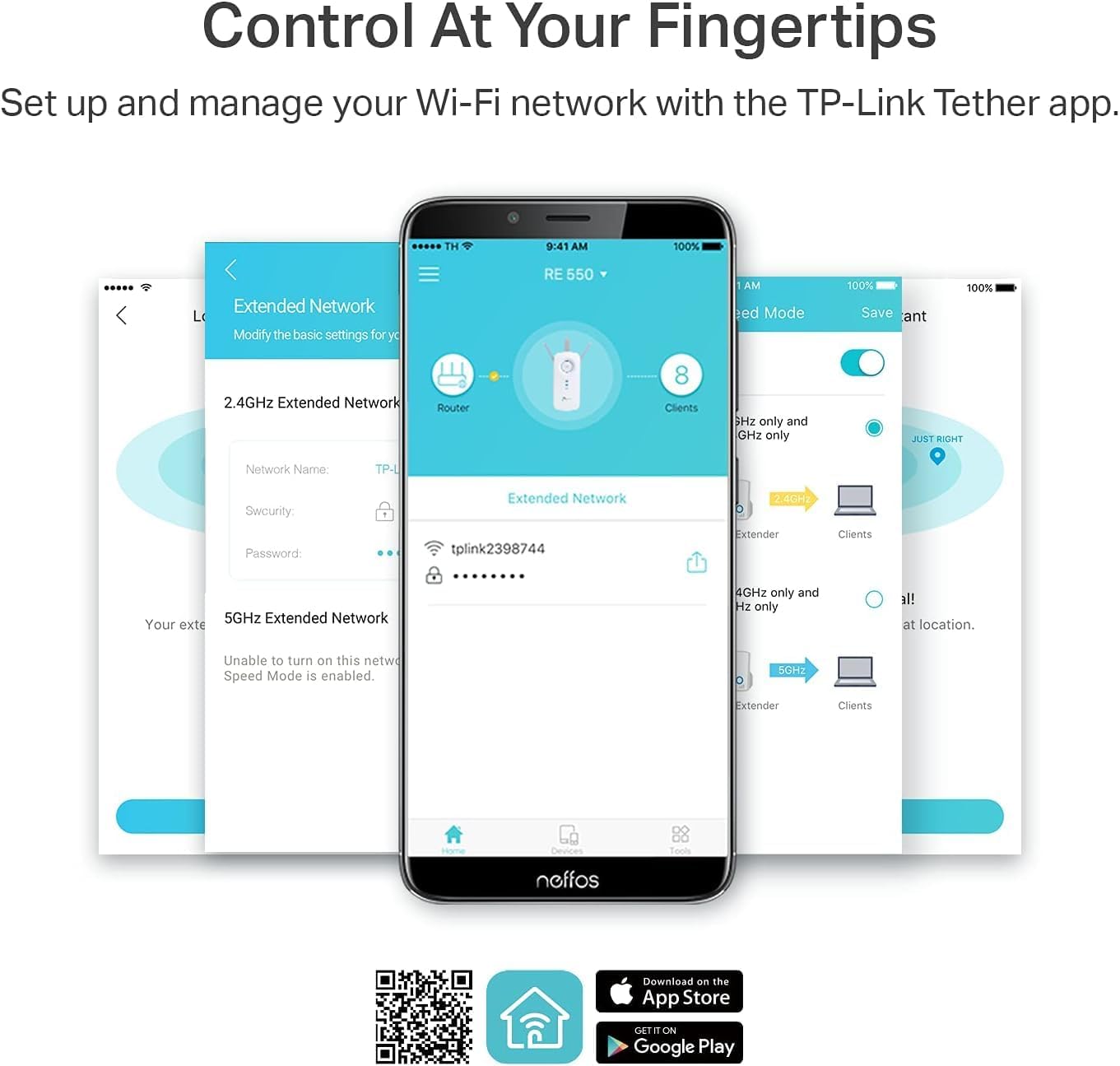
Tech-savvy buyers often say it rivals pricier extenders for coverage, yet it’s simple enough for anyone. Your Wireless extender setup is smoother when you use the TP-Link Tether App and follow the signal indicator to place it where it can still “hear” your router well.
The caveats: walls, routers, firmware, and SSIDs
- Environment matters: thick walls, long hallways, and older routers can limit gains.
- Firmware matters: update both router and extender for best stability.
- Network naming: you may see an SSID like
_EXTunless you’re using EasyMesh-compatible gear. - Compatibility quirks: a few international buyers report issues with certain routers/mesh systems—double-check compatibility if you’re mixing brands.
Market acceptance is strong: 4.3 stars from 19,064+ Amazon reviews, with 6,000+ sold since Feb 2021—suggesting most people really do manage to Eliminate dead zones without drama.
Installation & Everyday Features You’ll Actually Use
Fast setup with the TP-Link Tether App (or the browser GUI)
You don’t need to be “good at networking” to get the RE550 running. Plug it into a wall outlet, open the TP-Link Tether App on Android or iOS, and follow the guided steps to connect it to your existing Wi‑Fi. Prefer a laptop setup? You can also use the simple browser-based GUI, which lowers the barrier for non-technical users who just want clear menus and a quick finish.
"The Tether app makes setup approachable for anyone—no networking degree required." — Priya Desai, Home Tech Reviewer
Find the sweet spot with the Intelligent Signal Light
Placement matters more than people think. The RE550’s Intelligent Signal Light helps you avoid guessing by showing signal strength at a glance—typically a green/amber/red style indicator. Walk it a few feet at a time (hallway, stair landing, or near the problem room) until you hit the best color, then lock it in.
- Green: strong link to your router (best placement)
- Amber: workable, but try a closer outlet if you can
- Red: too far—move nearer to the router
AP Mode Create for the most stable speeds (use the Gigabit Ethernet port)
If you have an Ethernet jack or a wired run in the area with weak Wi‑Fi, this is where the RE550 shines. Use the single Gigabit Ethernet port to feed the extender a wired connection, then switch to AP Mode Create (Access Point Mode). That turns your wired line into a fresh, strong Wi‑Fi hotspot—often delivering higher, steadier speeds than repeating a weak wireless signal.
- Ideal for basements, garages, or home offices with wired backhaul
- Also works as a wired adapter for a smart TV, console, or PC
Smoother roaming with Smart Adaptive Roaming + OneMesh/EasyMesh
In daily use, the RE550 helps you stay connected as you move around. Smart Adaptive Roaming supports 802.11k/v on compatible devices, nudging them toward the stronger signal. And if you pair it with matching gear, OneMesh/EasyMesh compatibility can unify your network name for a more “single Wi‑Fi” feel—just note that full mesh benefits require compatible routers.
Specs, Security & Hardware Deep Dive (for the detail‑oriented)
Quick tech specs: AC1900 Dual Band (600Mbps 2.4GHz + 1300Mbps 5GHz)
If you like numbers, the RE550 is built around an AC1900 class link: 600Mbps 2.4GHz plus 1300Mbps 5GHz (about ~1.9Gbps combined on paper). That doesn’t mean you’ll see 1.9Gbps on a speed test—real-world results depend on walls, distance, and your router—but it’s a strong spec set for mainstream homes and busy households.
"On paper it's impressive for the price—three antennas and AC1900 in one compact unit is a smart value play." — Marco Alvarez, Network Hardware Analyst
Detailed Specifications: radios, Three Antennas, and multi-device performance
Hardware-wise, you’re getting Three Antennas (adjustable externals) plus MU‑MIMO and 3×3 MIMO. In plain terms, that helps when multiple devices are streaming, gaming, and video-calling at the same time—especially on 5GHz—because the extender can handle more simultaneous traffic instead of “taking turns” as much.
- Wi‑Fi bands: 2.4GHz (up to 600Mbps) + 5GHz (up to 1300Mbps)
- MIMO: 3×3 with MU‑MIMO support
- Ethernet: Gigabit port for wired devices or Access Point Mode
- Standards: supports legacy 802.11a/b/g/n and newer Wi‑Fi flavors; compatibility can vary with older routers
Chipsets & power: what’s inside
The RE550 commonly pairs MediaTek wireless chips with a Realtek Ethernet controller, a practical combo you’ll see in many reliable consumer extenders. Power is travel-friendly too: 100–240V input with a 9V/0.6A adapter output.
Security & compliance: Secure‑by‑Design and modern protections
On the security side, TP‑Link’s posture is strengthened by its participation in CISA’s Secure‑by‑Design pledge. You also get support for common Wi‑Fi security standards (use the strongest option your router supports), and you should keep firmware updated—especially if you’ve seen “works with some routers, not others” reports.
Coverage claims: why the numbers vary
You’ll see coverage marketed as up to 2,800 sq. ft. and sometimes ~1,115 m² on reseller pages. Treat these as best-case estimates. Real-world tests in homes often show big improvements, but building materials and placement matter more than any single spec sheet.
Common Pitfalls, Fixes, and Upgrade Paths
About this item: the “_EXT” network surprise (and how to unify it)
One of the most common “wait, what happened?” moments in your Wireless extender setup is seeing a new Wi‑Fi name appear—often your network name plus _EXT. That’s normal for many extenders, including the RE550, unless you’re running true mesh hardware. If you want one seamless name, you have two realistic paths: manually rename the extender’s SSID to match your router (and keep security settings identical), or use mesh-capable gear that supports unified SSIDs. Research note: unifying SSIDs requires mesh-capable hardware or manual renaming, so plan for that before you start testing.
Product Highlights that can backfire: placement, roaming, and expectations
The RE550’s Product Highlights—strong coverage, dual-band speeds, and Smart Adaptive Roaming—work best when you place it like a “staging post,” not a last-ditch fix. Put it halfway between your router and the dead zone, using the Intelligent Signal Indicator. Also, document your baseline speed first, then compare after setup; many users land around up to 200Mbps in typical use, while real homes vary by walls, interference, and device limits. If your phone or laptop clings to the weak signal, enable Smart Adaptive Roaming and remember: roaming only improves when your client devices support 802.11k/v.
"If you treat the RE550 like a staging post—place it logically, update firmware, and use AP Mode where possible—you'll get the best results." — Elena Park, Wireless Specialist
OneMesh compatibility, firmware, and router pairing (especially if you mix systems)
Compatibility quirks usually come down to firmware and mismatched ecosystems. Update the RE550 firmware and your router firmware before troubleshooting, especially if you’re an international buyer or you’re mixing mesh brands. For a truly unified experience, prioritize OneMesh compatibility (or EasyMesh) on both ends; a standalone extender can’t magically become a full mesh controller.
Upgrade paths: wired backhaul now, true mesh later
If you can run Ethernet, switch the RE550 to Access Point Mode. That wired backhaul is where some users report 300–400Mbps in real-world rooms that used to crawl. If you’re ready to upgrade beyond extending, move to a OneMesh/EasyMesh router—or step up to the TP‑Link Tri‑Band BE9300 Wi‑Fi 7 Router (Archer BE550) for a cleaner, true-mesh network. And if you’re shopping on Amazon anyway, a solid Cat6/Cat8 cable (Jadaol) and a surge protector can make the whole setup more stable for the long run.