.png&w=1280&q=75)
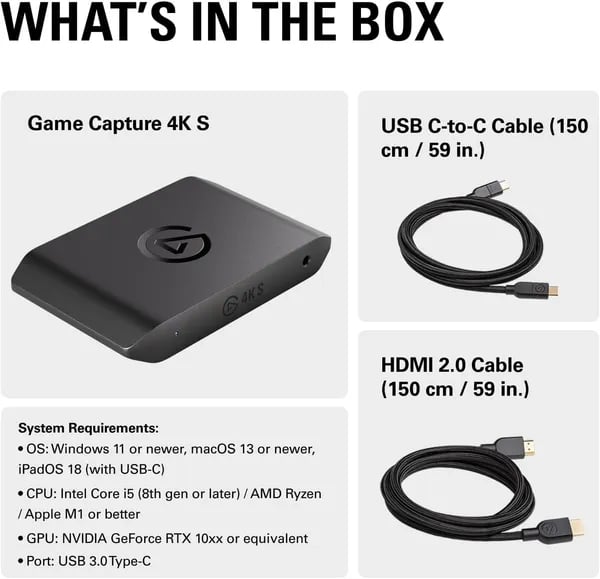
You know the pinch: you finally nail a highlight on your PS5 but your recording looks muted or choppy. I felt the same—until I tried the Elgato 4K S. In this short guide you'll get practical, second-person advice: how to plug it in, what to expect from its 4K60 passthrough and HDR10, and a few tips I wish I'd known before my first marathon stream. No fluff—just the stuff you can use right away.
Performance: 4K60 Capture, HDR10 & VRR
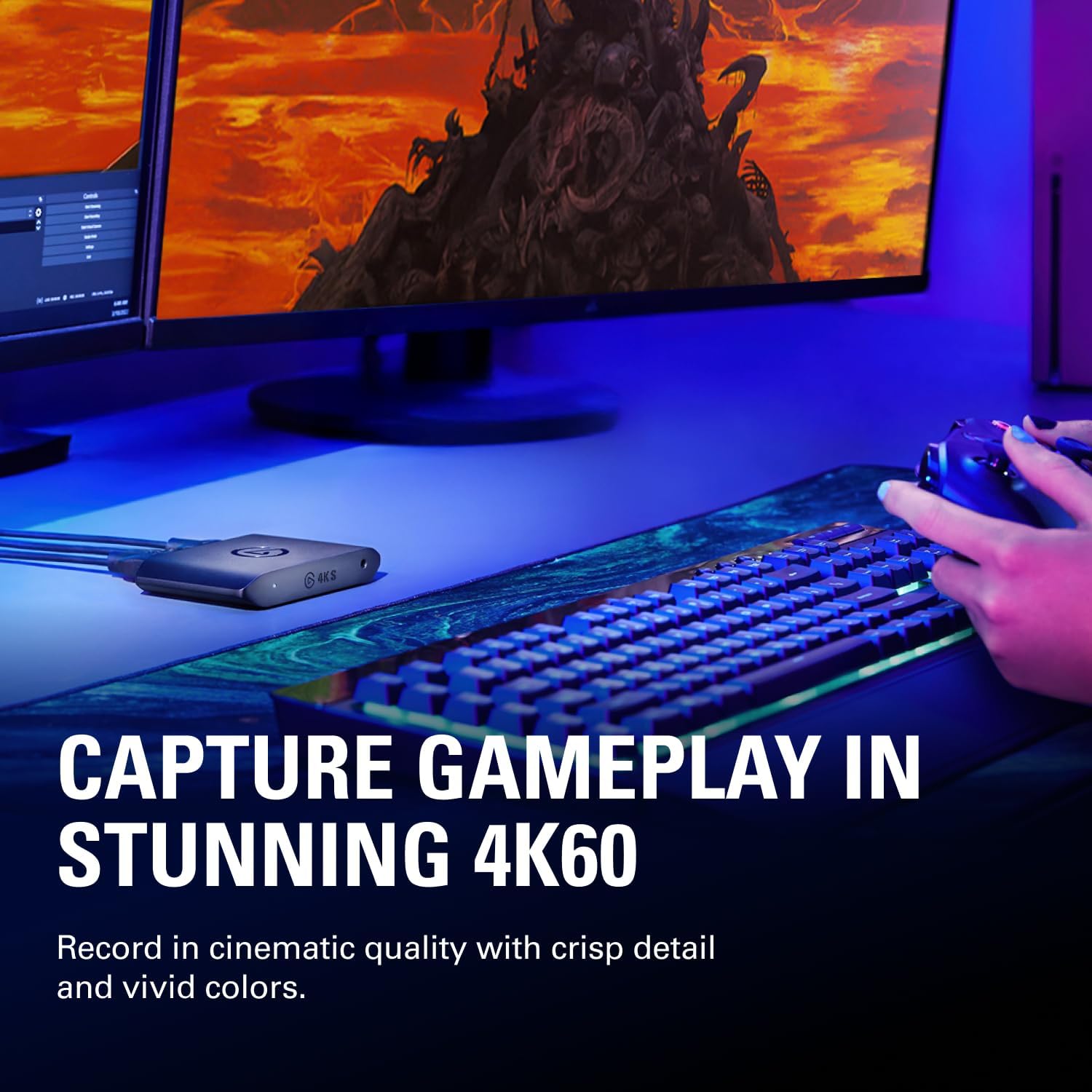
True 4K60 Capture with 2160p60 Passthrough (HDMI 2.0)
When you plug the Elgato 4K S (model 20GBR9901, ASIN B0FFTFYGLV) into your setup, you get the big promise streamers care about: 4K60 Capture with smooth, lag-free 2160p60 Passthrough. Because it uses HDMI 2.0 (unencrypted) in/out, your PS5, Xbox Series X/S, PC, or even a future Switch 2 can feed a clean 4K signal to your TV while your computer records or streams at the same time.
HDR10 Passthrough for richer highlights and shadows
If you play HDR games, HDR10 Passthrough is a huge win. The 4K S can pass HDR10 at up to 4K60 with 10-bit color depth, so bright skies, neon signs, and dark rooms look more natural on your display. One key detail: recorded HDR files are currently more limited—many setups cap HDR recording at 1080p60 on Windows, even though passthrough supports HDR10 at 4K60.
High refresh options: 1440p120 Support and 1080p240 Capture
Fast games feel better when you keep your high frame rate. With the Elgato 4K S, you can run 1440p120 Support for sharp, competitive play, or push to 1080p240 Capture for ultra-smooth motion (great for shooters and esports). Just remember: HDMI 2.0 limits 4K passthrough to 60Hz, so 4K120 isn’t the goal here—1440p120 and 1080p240 are.
VRR Support + near-zero latency over USB-C Connection
VRR Support helps reduce tearing and stutter when your frame rate jumps around. Combined with the fast USB-C Connection (USB 3.0 Type-C, UVC plug-and-play), you can often play through the preview with minimal delay—around ~30ms in many real-world setups.
Jamie Cruz, Stream Tech Analyst: "The Elgato 4K S nails low-latency passthrough and gives you the high-res options streamers need without the size of a desktop card."
Compact hardware that travels easily
It’s also built for portable streaming: about 112 x 72 x 18 mm and roughly 90 g (3.2 oz), so it fits in a small bag without adding bulk.
Setup & Compatibility: Plug-and-Play Across Platforms
USB-C Connection + HDMI: Your 3-Step Plug-and-Play Hookup
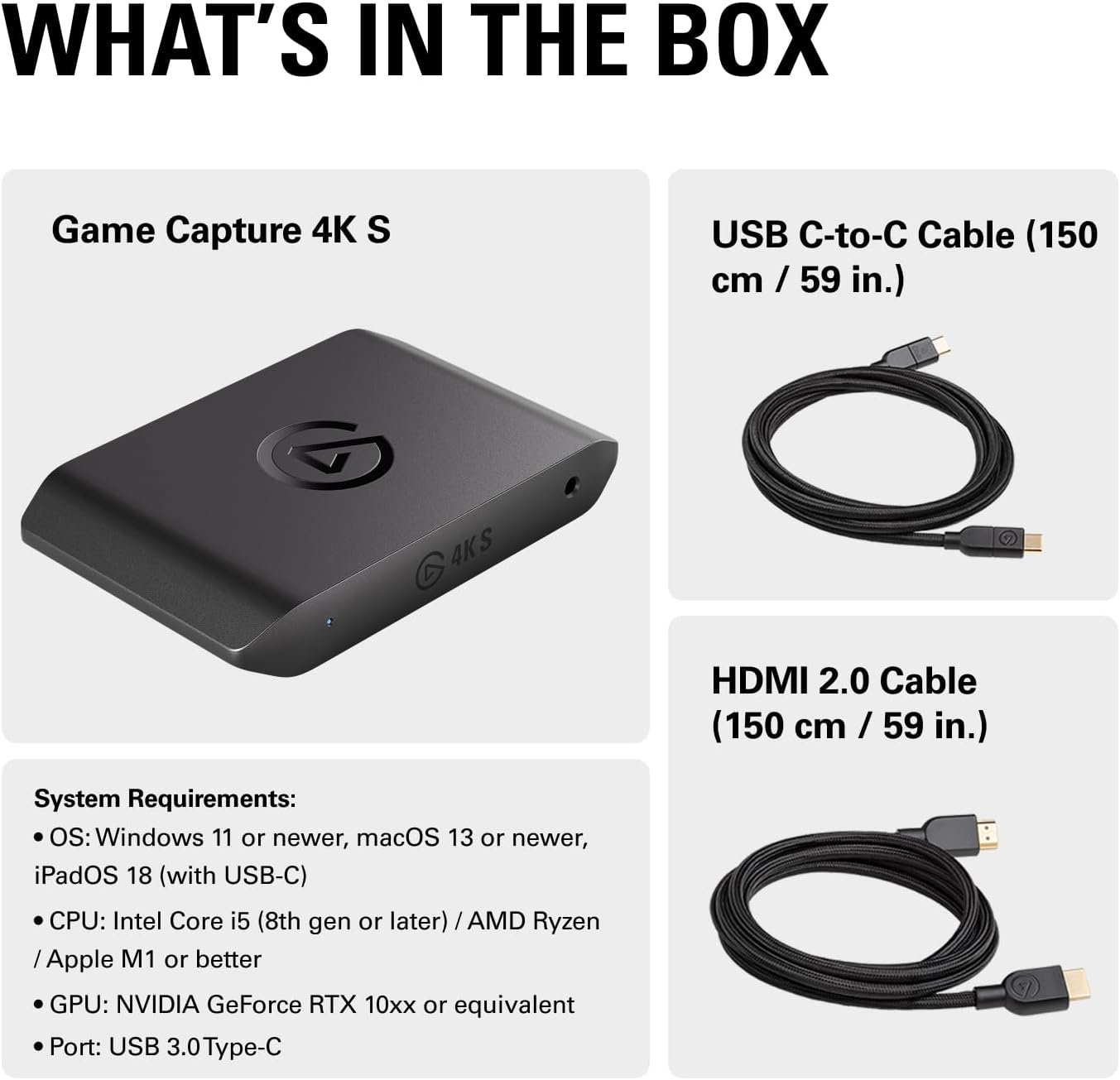
The Elgato 4K S is built to feel simple the moment you unbox it. Your basic setup is the same whether you’re on a PlayStation 5, Xbox Series X|S, or a future Nintendo Switch 2:
- Connect your console/PC to the 4K S with HDMI 2.0 (unencrypted) into HDMI In.
- Run a second HDMI cable from HDMI Out to your TV or gaming monitor for 4K60 passthrough.
- Use the included USB 3.0 Type-C cable to connect the card to your computer or iPad (USB-C).
That’s it—no power brick, no weird drivers for most setups, and very low latency while you play.
Lina Park, Product Specialist at Elgato: "We built the 4K S to be approachable—plug in, open OBS or QuickTime, and start capturing."
Software Choices: OBS, Elgato Utility, and QuickTime (Mac Compatibility)
Thanks to UVC support, you get near-universal Plug-and-Play behavior across platforms. For streaming and recording, you can choose:
- OBS (community favorite): add the 4K S as a video capture device and start streaming fast.
- Elgato’s capture utility: quick access to device settings and formats.
- QuickTime on Mac: a simple option when you just want clean recording.
For Mac Compatibility—including M1 models—use your strongest USB-C port to avoid bandwidth limits.
Analog Audio Input: Easy Chat or Extra Mic Capture
If you need more flexible sound, the optional Analog Audio Input (3.5mm) lets you pull in-game chat or a separate mic feed without changing your whole audio chain—handy for quick creator setups.
Compatibility Notes (Read This Before You Hit Record)
- USB 3.2 recommended: using older/slower ports can cause stutter or fewer capture options.
- HDMI passthrough is 4K60 (HDMI 2.0 limit). If you want higher-than-60Hz at 4K, you’ll need different hardware (or consider Elgato 4K X).
- Unencrypted HDMI required: HDCP-protected sources may be blocked until you disable HDCP on supported devices.
| Requirement | What to Use |
|---|---|
| USB | USB 3.0 Type-C (USB 3.2 recommended) |
| Supported devices | PS5, Xbox Series X|S, Nintendo Switch 2, Windows PC, Mac, iPad (USB-C) |
| Audio | Optional 3.5mm analog input |
Real-World Use: Streaming, Recording & Practical Tips
Streaming with Elgato 4K S: Lag-free Passthrough and Zero Latency feel
In real streams, the Elgato 4K S shines when you’re pushing fast games like Fortnite or quick PS5 shooters to Twitch or YouTube. You play on your TV/monitor through Lag-free Passthrough (4K60 via HDMI 2.0), while your PC or Mac handles the stream. The result is a Zero Latency feel where it matters most—your gameplay—while your audience gets clean, stable Stream Quality through OBS or your preferred app.
Feedback from the US, Canada, the Netherlands, France, and the UK repeats the same themes: setup is simple, the device is compact, and latency stays low even in long sessions.
Recording for creators: what you can capture today
If you’re recording for edits (YouTube highlights, tutorials, or pro-level gameplay breakdowns), you’ll appreciate 4K60 capture and smooth high-frame options like 1440p120 or 1080p240. One practical note from buyers: some high-frame-rate/HDR workflows currently cap recorded footage at 1080p60 depending on mode and software. Keep an eye on firmware/software updates if you’re chasing higher recorded resolutions in those settings.
Portable capture for events and travel setups
The small size makes it easy to toss into a bag for LAN nights, tournaments, or on-location recording. Pair it with a laptop or even an iPad for quick capture without building a full studio rig.
Practical tips (USB-C matters more than you think)
- Use your most capable USB-C/USB 3.2 port—avoid low-power hubs. Many stutter/format issues come from weak ports.
- On Mac (especially M1), test each USB-C port and stick with the most stable one for long streams.
- Remember passthrough is 4K60; if you want higher than 60Hz at 4K, you’ll hit the HDMI 2.0 ceiling.
Alex P., Verified Buyer: "Worth every penny — rock-solid during a 6-hour stream with no dropped frames."
Reliability, price, and Amazon warranty details
With a 4.6/5 rating from 662+ reviews, users often call out cool operation during marathon streams and a durable build. Pricing is typically $134.99 new or around $120 used (example: 2DaySale). You’re also covered by the Amazon warranty and an extended holiday return window through January 31, 2026 for eligible late-2025 purchases, with fast delivery options like December 28 or December 31.
Alternatives & Verdict: Is It Worth It?
Capture Card Alternatives on Amazon (and what you give up)
When you scroll Amazon’s comparison carousel, you’ll spot cheaper options like the AVerMedia GC553Pro and the Warrky 4K HDMI Capture Card. If your goal is basic Game Capture, they can look like easy wins—especially if you’re trying to spend less upfront.
But in real setups, the “cheap” choice can cost you time. You may deal with fussier drivers, less consistent performance, or extra troubleshooting in OBS. That’s where Elgato usually pulls ahead: smoother setup, cleaner workflow, and fewer surprises when you hit “Go Live.”
- AVerMedia GC553Pro: solid brand, often priced lower, but your experience can vary depending on your PC ports and software stack.
- Warrky 4K HDMI Capture Card: budget-friendly, but typically lacks the same polish, long-session stability, and creator-focused tools.
When you should skip this and get the 4K X instead
This 4K S Review wouldn’t be complete without a reality check: if you’re chasing ultrawide 3440x1440 at 144Hz or you want more “pro” headroom, the 4K X is the better fit. It’s built for demanding creators who care about higher refresh capture workflows and wider format support.
Verdict: Elgato Game Capture that’s worth paying for
If you value smooth streaming and minimal fuss, the Elgato 4K S is easy to justify. You’re buying a compact, travel-ready Capture Card that works across PS5, Xbox Series X/S, PC, Mac, and even iPad—while delivering crisp 4K60 passthrough/capture and high-frame options for fast gameplay.
Taylor Nguyen, Pro Streamer: “Elgato's ecosystem just works — it saves time every single stream.”
Also consider total cost: the device (model 20GBR9901, ASIN B0FFTFYGLV) plus any add-ons you might need, like a chat link cable or a spare USB-C cord. If reliability and OBS friendliness matter, Elgato is usually the safer bet.
Wild Cards: Hypothetical & Analogies
A portable streaming “what if” that changes how you plan
Imagine you’re at an esports venue and the organizer hands you a rented PS5 for your match coverage. You don’t have your full desk setup, and you definitely don’t have room for a PC-based capture card build. This is where the Elgato 4K S feels like a cheat code: it’s small enough to live in your backpack, light enough to forget it’s there, and fast enough to plug in and go with USB-C. In that moment, portable streaming isn’t a nice extra—it’s the difference between “I’ll upload later” and “I’m live right now.”
Because the device is compact and runs cool, you can set up on a folding table, route HDMI 2.0 from the console, and capture clean footage with low-latency playability. That ease-of-use unlocks creative workflows bigger rigs can’t: quick LAN highlights, pop-up interviews, or capturing a friend’s gameplay on the spot without rebuilding your whole studio.
Samira Cole, Community Streamer: "Packing the 4K S for a LAN felt like bringing a tiny production studio—serious capability in a small box."
The translator analogy: why a Capture Card matters beyond specs
Think of a Capture Card like a translator between your console and the internet. Your console “speaks” raw video—frames, color, HDR, motion—while your streaming app needs a clean, stable feed it can understand. The Elgato 4K S sits in the middle and helps preserve what you actually saw: the sharp 4K detail, the smooth high-frame-rate feel at 1440p120 or 1080p240, and the vivid punch of HDR10 (especially on Windows). It’s not just about numbers; it’s about your audience seeing the same clutch moment you did, without weird stutter or washed-out color.
A simple final checklist before you commit
Before you buy, picture your real setup day. Do you have a true USB 3.2/USB-C port available? Do you need HDR capture, or is SDR fine? Are you aiming for 4K60 capture and passthrough, or do you care more about high refresh at lower resolutions? And if you’re chasing ultrawide or extreme refresh capture, you may want to compare with the 4K X. When you choose based on workflow—not just specs—you end up with a setup that’s easier to run, easier to travel with, and easier to trust when it’s time to go live.