.png&w=1280&q=75)
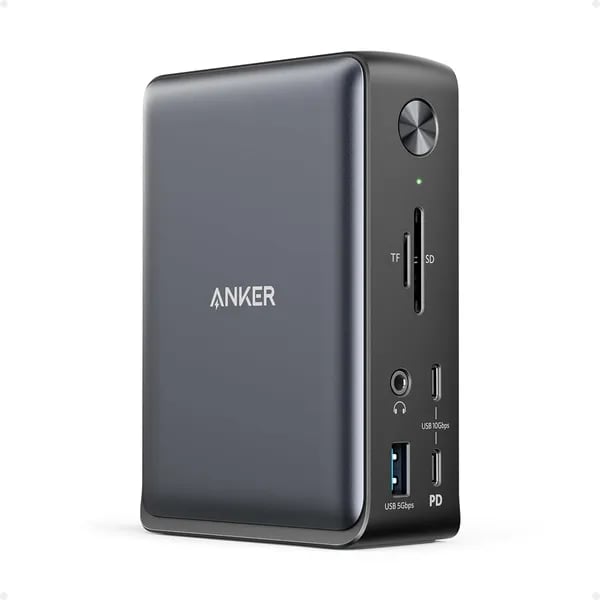
You know that moment when your single cable finally replaces a messy tangle of chargers, dongles, and scratched-up adapters? I got that thrill testing (and pretending to be an overworked editor) with the Anker 13-in-1. This post is written like a chat over coffee: practical, slightly opinionated, and full of tiny hacks to make the dock actually feel like part of your workflow.
Why this dock actually feels like an upgrade
Real-world wins: your USB-C Docking Station finally behaves
If you’ve ever plugged into a dock and watched your monitors shuffle around—or had audio cut out mid-Teams call—you know how “small” issues can wreck your day. The Anker 13-in-1 feels like an upgrade because it’s built for the boring stuff to just work: stable displays, steady charging, and reliable ports.
Users regularly report true plug-and-play across major laptop brands like Dell, HP, and Lenovo, especially after ditching finicky Thunderbolt 3 or off-brand docks. Instead of fiddling with settings, replugging cables, or rebooting to get your screens back, you get your multi-monitor workflow restored fast—often immediately.
This dock was designed to make multi-monitor work feel seamless—no fiddling, just productivity. — Sarah Lee, Anker Product Manager
Design perks: compact, tidy, and actually desk-friendly
The dock’s footprint is small enough to feel like a Removable Hub you can keep on your desk or toss in a bag: 13.1 oz and 4.95 x 3.49 x 1.64 inches. It doesn’t sprawl across your workspace, and the port layout is practical—front-access connections are easy to reach when you’re swapping SD cards, plugging in headphones, or adding a USB drive.
Another detail you’ll appreciate: the slip pad. It keeps the dock anchored, so you’re not dragging it around every time you unplug a cable.
Practical niceties that make daily use smoother
- Whisper-quiet operation: users call out the low noise level as a real differentiator, especially in quiet home offices.
- Power button: you can shut down the whole setup at the end of the day without yanking cords.
- Included 135W power adapter: fewer power bricks on your floor, and more stable performance for power-hungry devices.
| Spec | What you get |
|---|---|
| Weight | 13.1 oz |
| Size | 4.95 x 3.49 x 1.64 in |
| Power adapter | 135W included |
| Rating | 4.0 stars (2,260+ reviews) |
Ports, power, and performance — the specs that matter
Triple Display (2x HDMI + 1x DisplayPort): what you can really run
The headline feature is Triple Display: you get 2x HDMI plus 1x DisplayPort for up to three external screens. On Windows 10/11, this dock can extend to three monitors with different content using MST—ideal when you want email on one screen, docs on another, and meetings on the third.
If your laptop supports DisplayPort Alt Mode, this dock unlocks true multi-monitor productivity on Windows. — Tom Richards, IT Consultant
On macOS and iPadOS, the limitation is important: you’re restricted to SST mirroring, so extra displays show the same image instead of true extend mode. Plan for that if multi-monitor productivity is your main goal.
10 Gbps Transfer, Gigabit Ethernet, and the I/O you’ll use daily
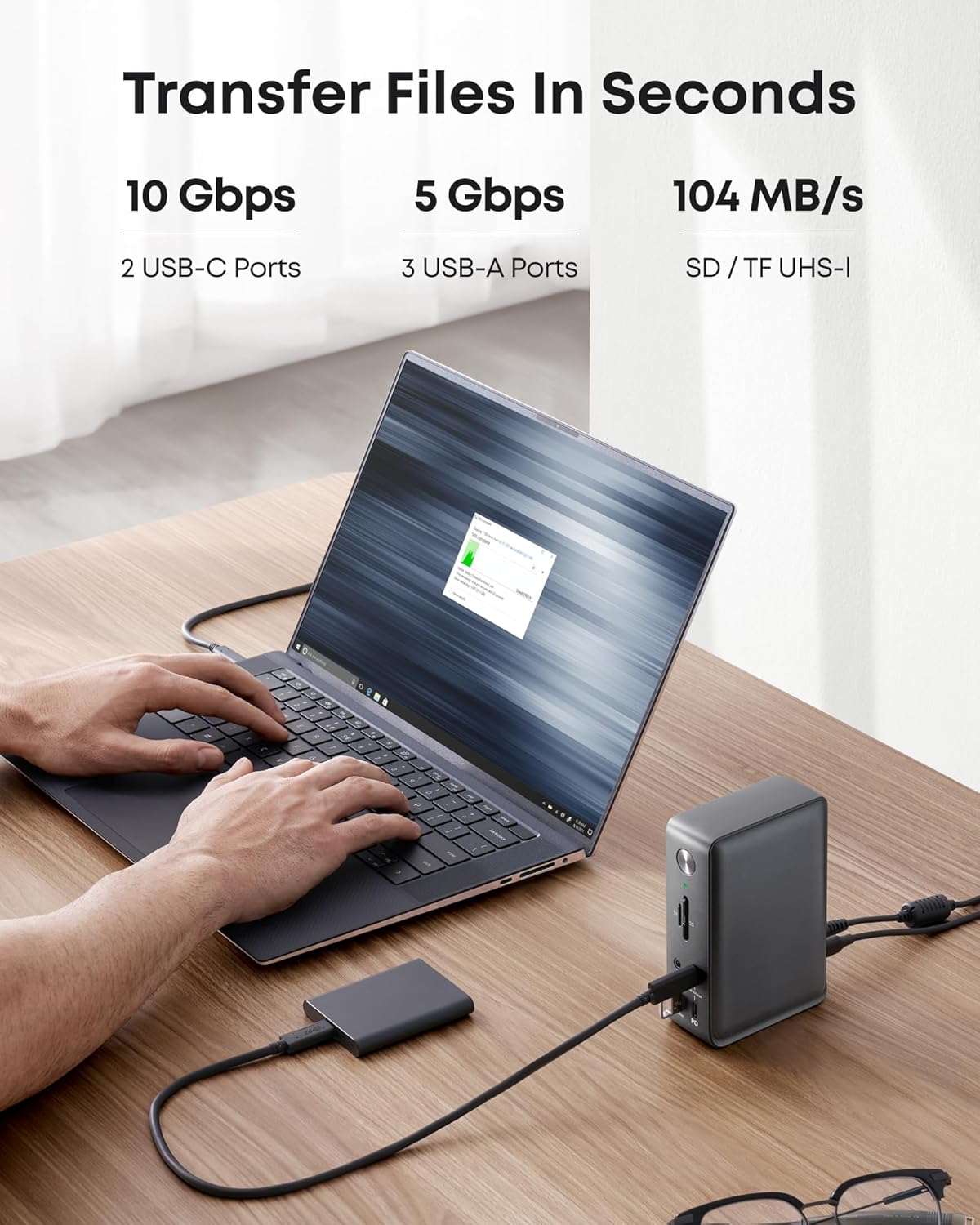
This dock is built for real work, not just “extra ports.” You get fast connections for drives and accessories, plus stable networking when Wi‑Fi isn’t enough. The standout is 10 Gbps Transfer over USB‑C for speedy file moves, backed up by 5 Gbps USB‑A for everyday peripherals.
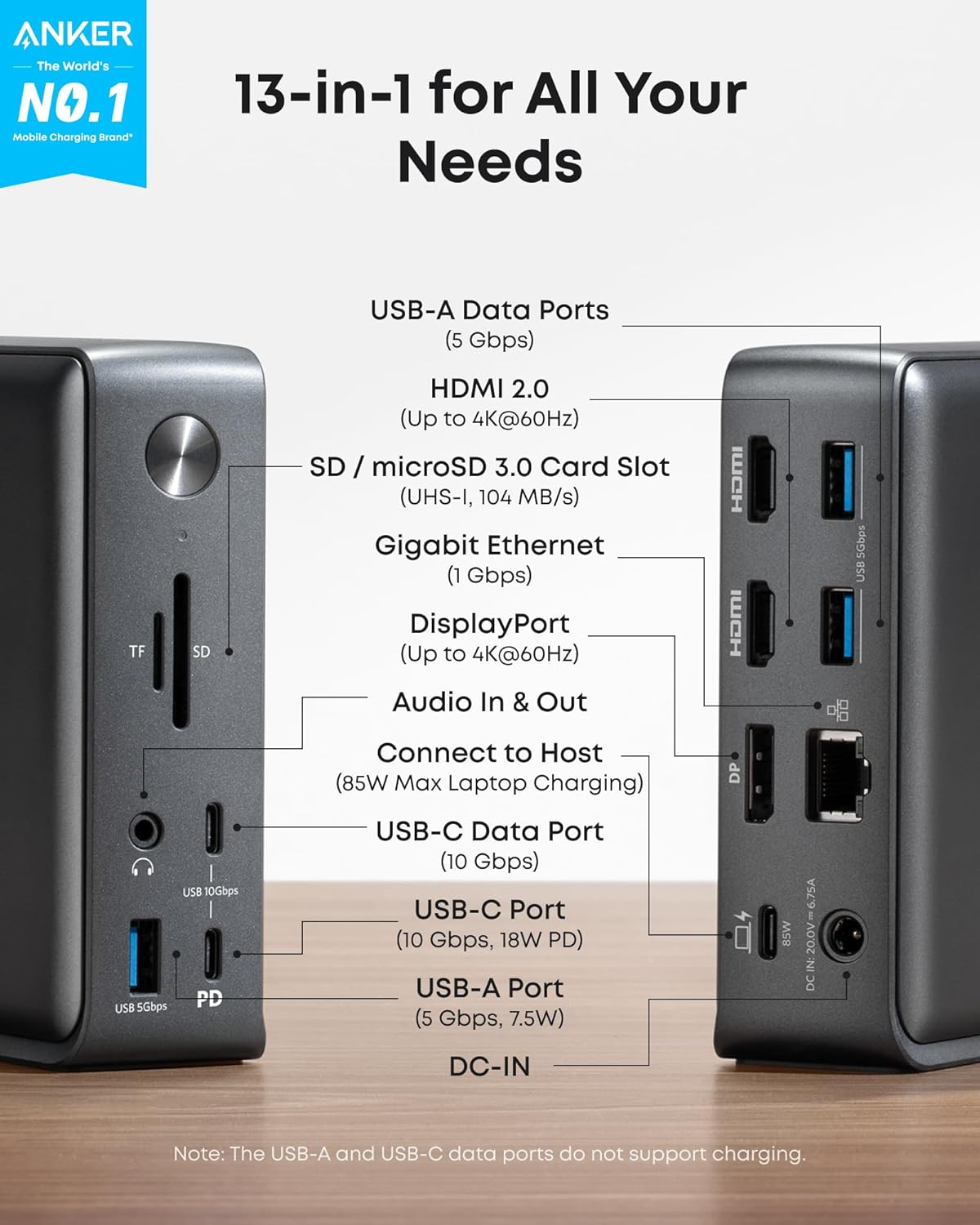
- Video: 2x HDMI + 1x DisplayPort
- Data: USB‑C up to 10 Gbps, USB‑A up to 5 Gbps
- Cards: SD + microSD readers
- Network: Gigabit Ethernet for consistent, low-lag connections
- Audio: 3.5mm jack for headphones/speakers
85W Charging and the compatibility checklist (DisplayPort Alt Mode matters)
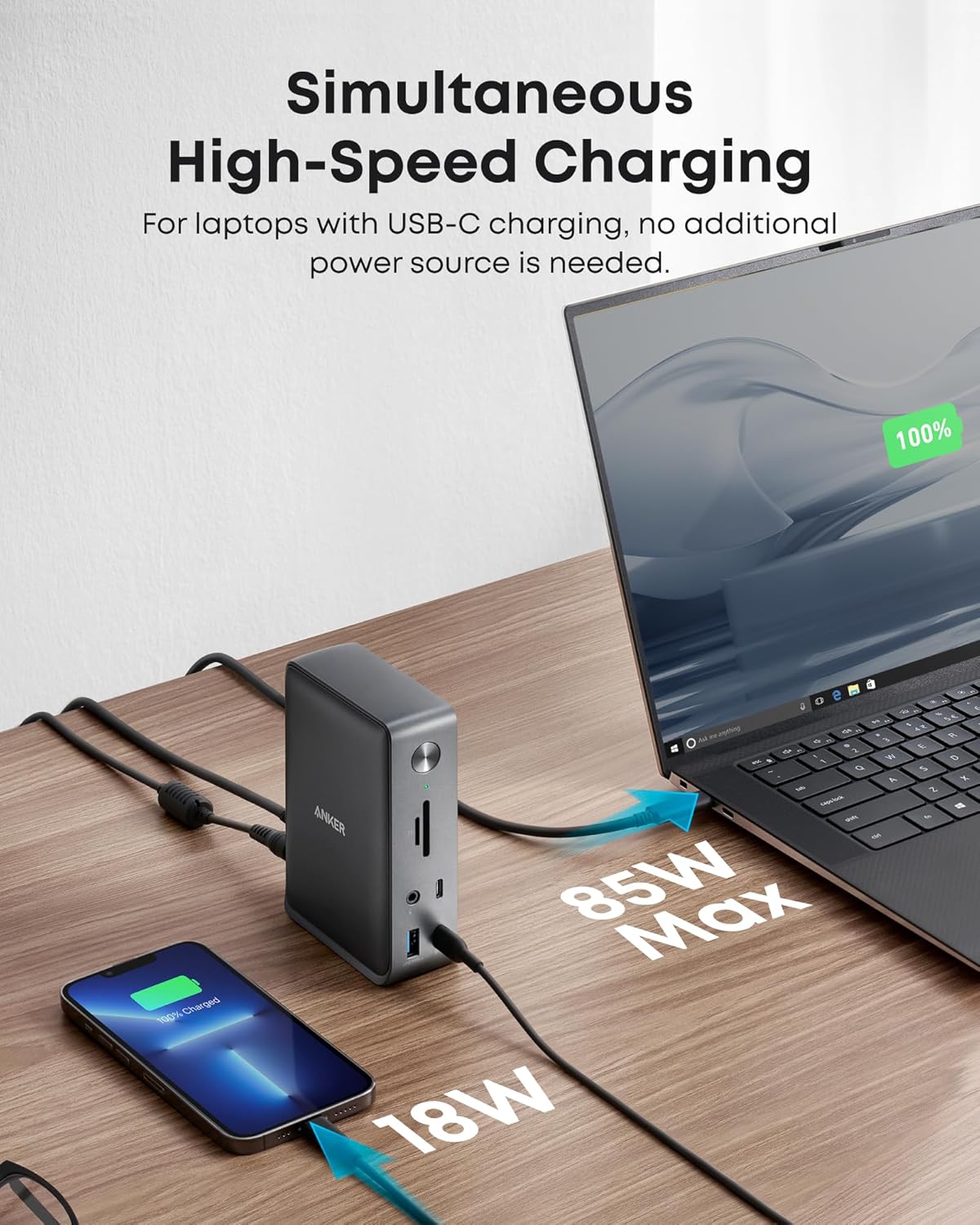
Power is a big reason this dock feels “set and forget.” You get 85W Charging to your laptop via Power Delivery, plus up to 18W for a phone or other device—supported by the included 135W power supply.
Before you buy, check your laptop’s USB‑C port supports DisplayPort Alt Mode and PD. Without that, you won’t get full video + charging.
- Works best: Windows 10/11 and ChromeOS with USB‑C/USB4/Thunderbolt that supports DP Alt Mode + PD
- Linux: not officially supported, but users report success on Ubuntu and MX Linux
- Dell note: some models show “slow charger” warnings due to proprietary charging—charging still works
| Spec | What you get |
|---|---|
| Displays | 2x HDMI + 1x DisplayPort (Triple Display on Windows via MST) |
| Charging | 85W laptop PD + 18W device |
| Warranty | 18-month Anker warranty |
Setup, tips, and the little annoyances you’ll thank me for
Start with the right cable (it fixes 80% of “dock drama”)
Use the included 3-foot USB-C cable. If you swap it, make sure it’s a USB 3.1 Gen 2 cable rated for 85W Power Delivery. The wrong cable is the fastest way to get flaky video, random disconnects, or slow charging—especially when you’re pushing triple displays and fast USB-C Ports at the same time.
A small thing like a power button or the right cable can change your whole desk experience. — Sarah Lee, Anker Product Manager
Before you expect triple displays: check DisplayPort Alt Mode + Power Delivery
Your laptop’s USB-C port must support DisplayPort Alt Mode for video and Power Delivery for charging. A USB-C port that’s “data-only” will still run USB-A Ports, Ethernet, and SD Card Readers, but your monitors won’t light up.
- Look for a DP icon near the USB-C port, or confirm in your laptop specs.
- On Windows 10/11, MST lets you extend across up to three screens.
- On Mac, external displays are typically mirror-only (that’s an OS limit, not a dock bug).
Quick port tips for a smoother daily setup
- Monitors: If an older monitor acts weird, try a different output (HDMI vs DisplayPort), lower refresh rate, or swap the cable first.
- USB-A Ports: Plug keyboards/mice into USB-A to keep your faster USB-C Ports free for SSDs.
- SD Card Readers: The SD slot can feel tight. Insert straight, don’t force it, and remove slowly to avoid “stuck card” panic.
- Power button: Use it to shut down your whole desk cleanly at the end of the day.
The quirks you should expect (so they don’t surprise you)
Linux is officially unsupported, though some users report success on Ubuntu/MX Linux for charging and displays—just expect some trial-and-error. You may also see occasional port recognition issues with picky monitors; a reboot or replug usually fixes it.
If something fails, the safety net is real
You’ve got a 30-day return window, plus Anker’s warranty and responsive support. One user even reported a sudden power-off on July 3, 2022 and got a replacement quickly after sharing proof of purchase—exactly the kind of backup plan you want in a daily dock.
Alternatives, price, and whether it’s worth your money
Pricing snapshot for the Anker 13-in-1 Dock
The Anker 13-in-1 USB-C Docking Station (B088F7SY6S) typically lands in a comfortable mid-range price tier: about $199.99 new or $99.99 used via AnkerDirect on Amazon. If you’re a Prime member, you may also see free delivery dates (for example, by Friday, January 9), which helps if you need a dock fast for work.
Pricing can shift by retailer and stock, so it’s worth checking the Anker Store, Amazon, and Walmart before you buy.
How it compares to popular alternatives
| Dock | Typical price | Best for |
|---|---|---|
| TobenONE MacBook Docking Station Dual Monitor 4K | $159.99 | Mac-focused setups, dual display needs |
| Lenovo USB-C Dual Display Travel Dock | $49.99 | Budget buyers, light travel use |
| PULWTOP MacBook Pro Docking Station | $79.89 | Lower-cost MacBook-style expansion |
These alternatives generally sit in the 4.1–4.8 star range, so you’re not stuck with “no-name” options if your needs are simpler.
Is the Anker 13-in-1 worth it?
If you’re on Windows 10/11 and want a true multi-monitor desk setup, the value is strong. You’re paying for triple-display support (2x HDMI + 1x DisplayPort), a wide port mix, and dependable Laptop Charging—up to 85W for your laptop plus 18W for a phone. The included 135W power adapter is a big deal, since many docks make you buy that separately.
For most Windows professionals juggling multiple monitors, this dock hits the sweet spot between price and capability. — Tom Richards, IT Consultant
Risk is lower, too: you get a 30-day return policy and an 18-month warranty, backed by customer support that many buyers say is responsive (even when hardware fails).
When you should choose an alternative
- You need extended displays on Mac: macOS typically mirrors instead of extending across three screens.
- You travel constantly: the Lenovo travel dock is cheaper and easier to toss in a bag.
- You’re on a tight budget: PULWTOP or Lenovo can cover basics for less.
Conclusion & the slightly weird hypothetical
Your verdict on the Anker 13-in-1 USB-C Docking Station
If you want a USB-C Docking Station that simply behaves, the Anker 13-in-1 is an easy pick—especially if you live in Windows. You get dependable Multi-Monitor support (up to three displays on Windows via MST), strong everyday charging with 85W Power Delivery to your laptop, and the kind of port variety that turns a messy desk into a one-cable setup. Add in 10 Gbps USB-C for fast storage, Gigabit Ethernet for stable calls and downloads, and a beefy 135W power adapter that keeps everything fed even when you plug in “too much.” It’s also a solid mid-range docking solution: not the cheapest, not the most premium, but consistently reliable—with customer service that people actually mention in a good way.
The main “read this twice” point is Mac behavior. On macOS and iPadOS, you’re limited to mirrored external displays (SST), so if you need true extended screens for serious productivity, this isn’t the magic fix. You may also notice small quirks like a tight SD card slot, occasional fussiness with older monitors, and the fact that Linux isn’t officially supported (even if some users report it works fine).
“Think of this dock as the unsung desk hero — quietly keeping everything connected so you can do the work.” — Tom Richards, IT Consultant
The slightly weird hypothetical (that actually helps)
Imagine your laptop is a tiny airport. Every cable is a plane trying to land at once: monitors, chargers, Ethernet, keyboard, headset, SD cards. The Anker 13-in-1 is the control tower—routing traffic so your screens stay steady, your network stays on time, and your devices get power without drama.
Final nudge before you click “Buy”
Use the included USB-C cable first, check that your laptop’s USB-C port supports DisplayPort Alt Mode and Power Delivery, and keep your proof of purchase handy for the 30-day return. If something feels off, lean on Anker’s 18-month warranty and support—they’ve earned a reputation for making fixes painless.